
· Adrian Bico · web design · 9 min read
10 UI Fundamentals That Make Interfaces Explain Themselves
The best interfaces never need instructions. Here are the ten design fundamentals we apply to every web and app project, and why they matter more than any visual trend.

Open any app you actually enjoy using and you will notice something odd. Nobody taught you how to use it. You knew which button was the main action, which menu item was selected, and which text was a heading before you read a single word. That is not an accident. It is the result of a designer applying a set of fundamentals that most users never consciously notice.
We apply these same fundamentals on every web and app project we build at WebArt Design. Here are the ten that do most of the heavy lifting.
1. Signifiers tell users how things work
A signifier is any visual cue that tells the user what an element does without explaining it in words. Put a container around two of three menu items and people instantly understand those two are related. Highlight one of them and people know it is selected. Grey out a label and people know clicking it will do nothing.
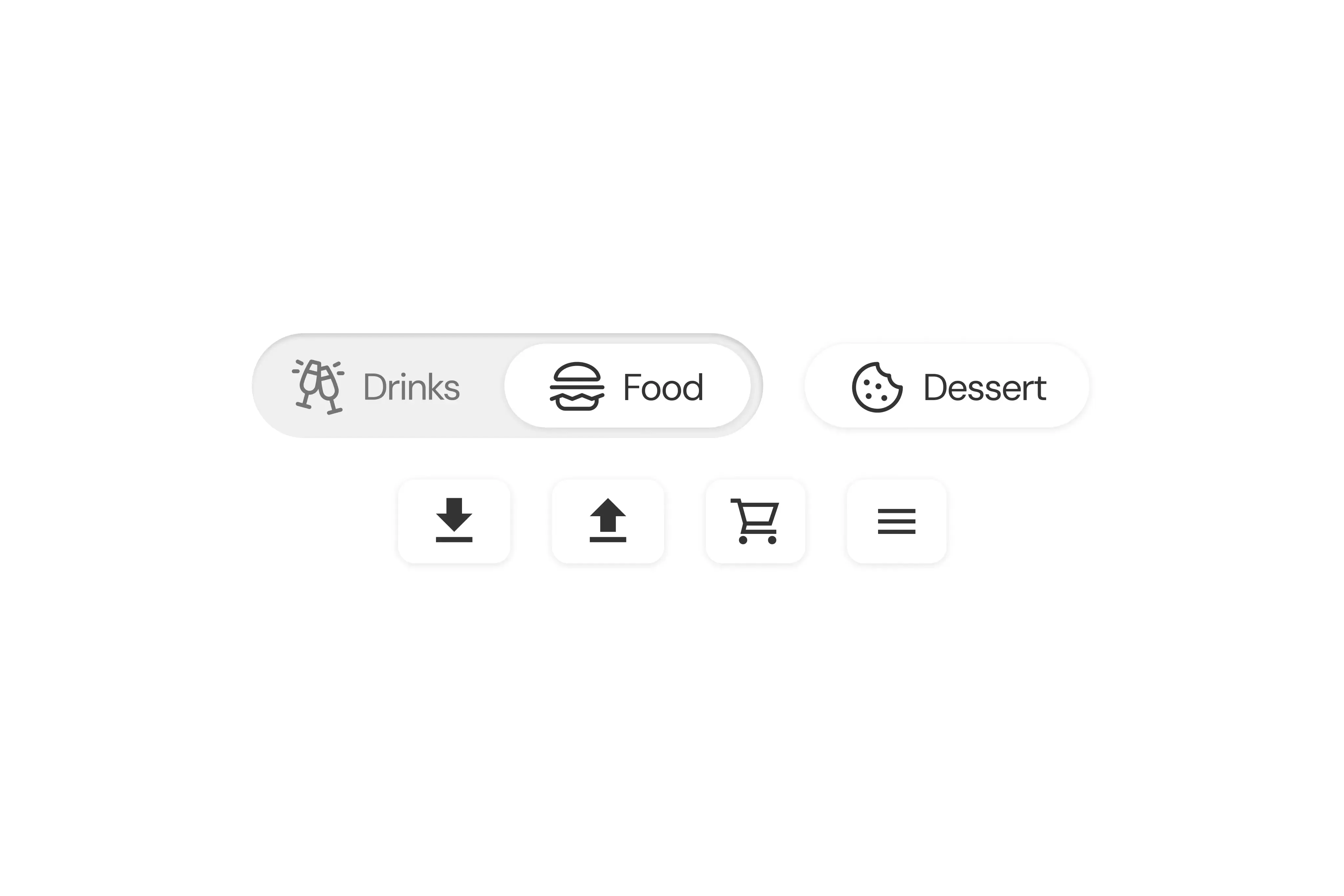
Good interfaces are full of these cues. Button press states, highlights on the active nav item, hover effects, tooltips. Each one quietly answers the question “what can I do here?” before the user has to ask it. If you find yourself writing instructions for your interface, the interface itself has probably failed. The design should carry that information.
2. Visual hierarchy decides what gets seen first
Take a card showing a delivery, a booking, or a ride. If every piece of information is the same size and colour, you have built a spreadsheet, not a design. Hierarchy fixes that, and you only have three levers to pull: size, position, and colour.
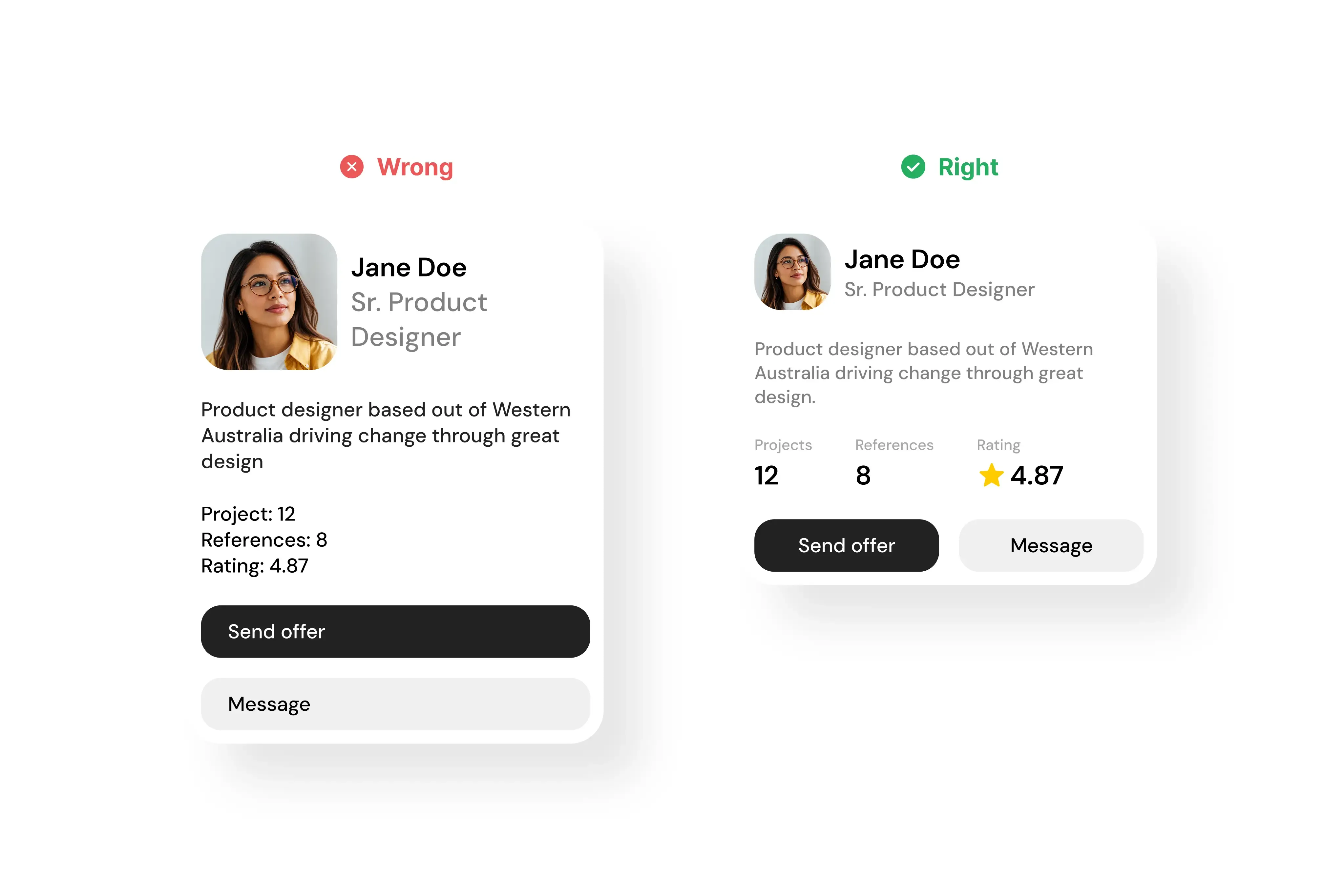
The most important item should be large, bold, and at the top. Secondary details like the date and time sit below it, smaller. The price works well at the top right in a distinct colour, because being different is exactly what draws the eye to it. Contrast creates the hierarchy. Big against small, colourful against muted.
There is rarely one correct answer. Two designers can lay out the same card differently and both can work, as long as the same logic holds. The important content sits near the top, the bigger and more colourful elements matter more, and images get used wherever they help, because an image makes a card scannable in a way text never will.
3. Whitespace matters more than your grid
There is a persistent myth that everything must snap to a 12 column grid with elements exactly 8 pixels apart. Grids are guidelines, not laws. Plenty of strong landing page designs ignore the columns entirely. Where grids genuinely earn their keep is repeating, structured content like galleries and blog listings, because they give you sensible rules for collapsing to 8 columns on tablet and 4 on mobile.
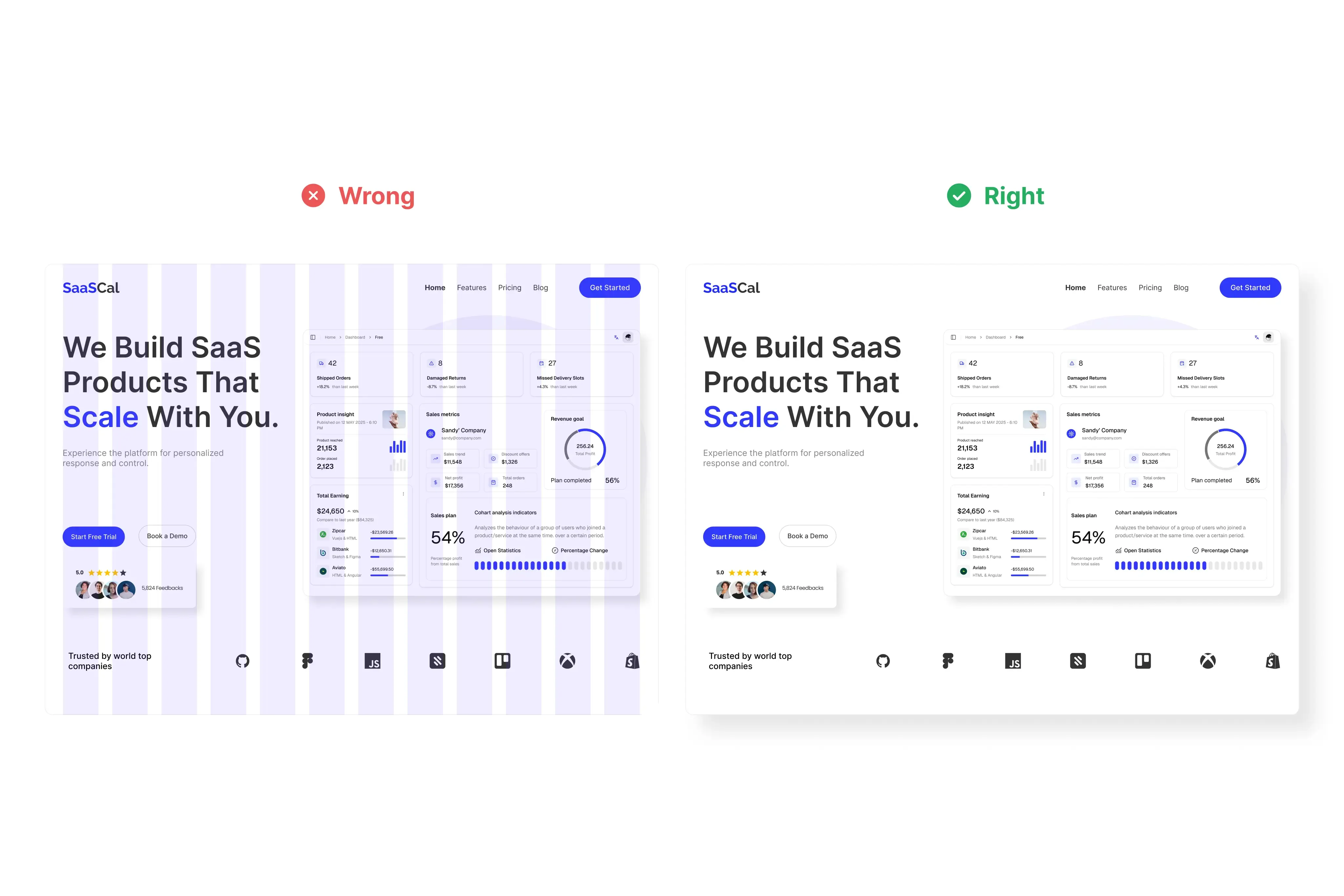
What matters far more is whitespace. Let elements breathe. A simple hero section needs little more than consistent spacing between each item, with tighter spacing used to group elements that belong together, like a heading and its subtext. That grouping is itself a form of hierarchy.
This is also where the 4 point spacing system actually proves useful. Spacing in multiples of 4 is not magically prettier, but every value can be halved cleanly, which keeps spacing consistent across an entire product. Consistency is the real goal. The grid is just a tool for getting there.
4. One font is enough
Design is mostly text, so typography decisions compound across every screen. The good news is you can simplify brutally. One well chosen sans serif font will cover almost any project. We rarely reach for a second typeface, and font selection should never be where a project’s design budget disappears.
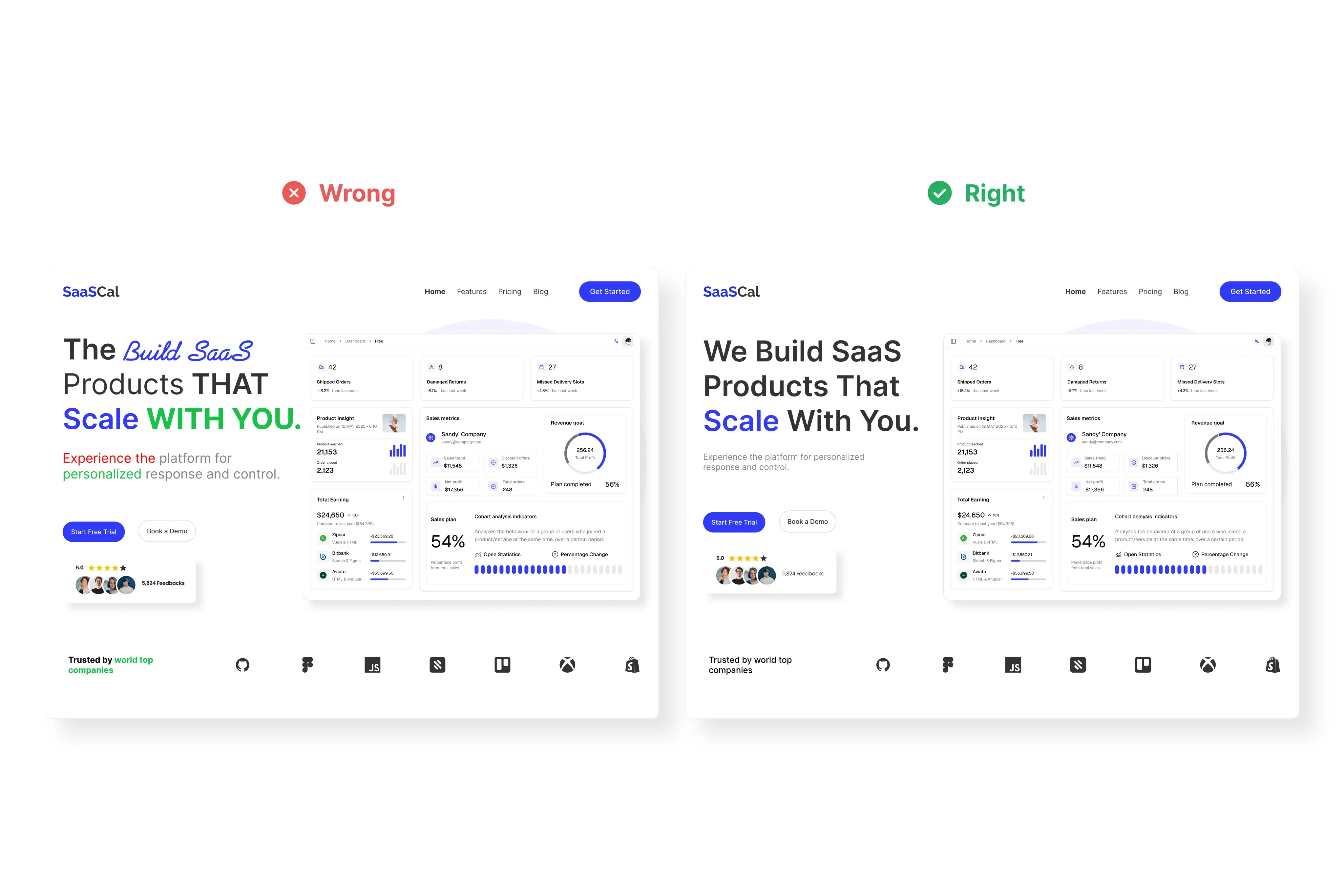
One adjustment improves nearly every design instantly. Large heading text usually ships too loose. Tighten the letter spacing by 2 to 3 percent and drop the line height to around 110 to 120 percent, and headings immediately look deliberate instead of default.
Font sizes need restraint too. A marketing site rarely needs more than six sizes, and the range can be wide, small captions up to oversized hero text. Dashboards are a different story. Information density goes up, so the range shrinks, and sizes above 24 pixels become rare.
5. Colour should mean something
Start with one primary colour, usually your brand colour. Lighten it for backgrounds, darken it for text, and you already have a subtle palette that lifts a design out of grey monotony. Extend that thinking and you are halfway to a full colour ramp, the structured sets of tints and shades larger companies use for chips, charts, and component states.
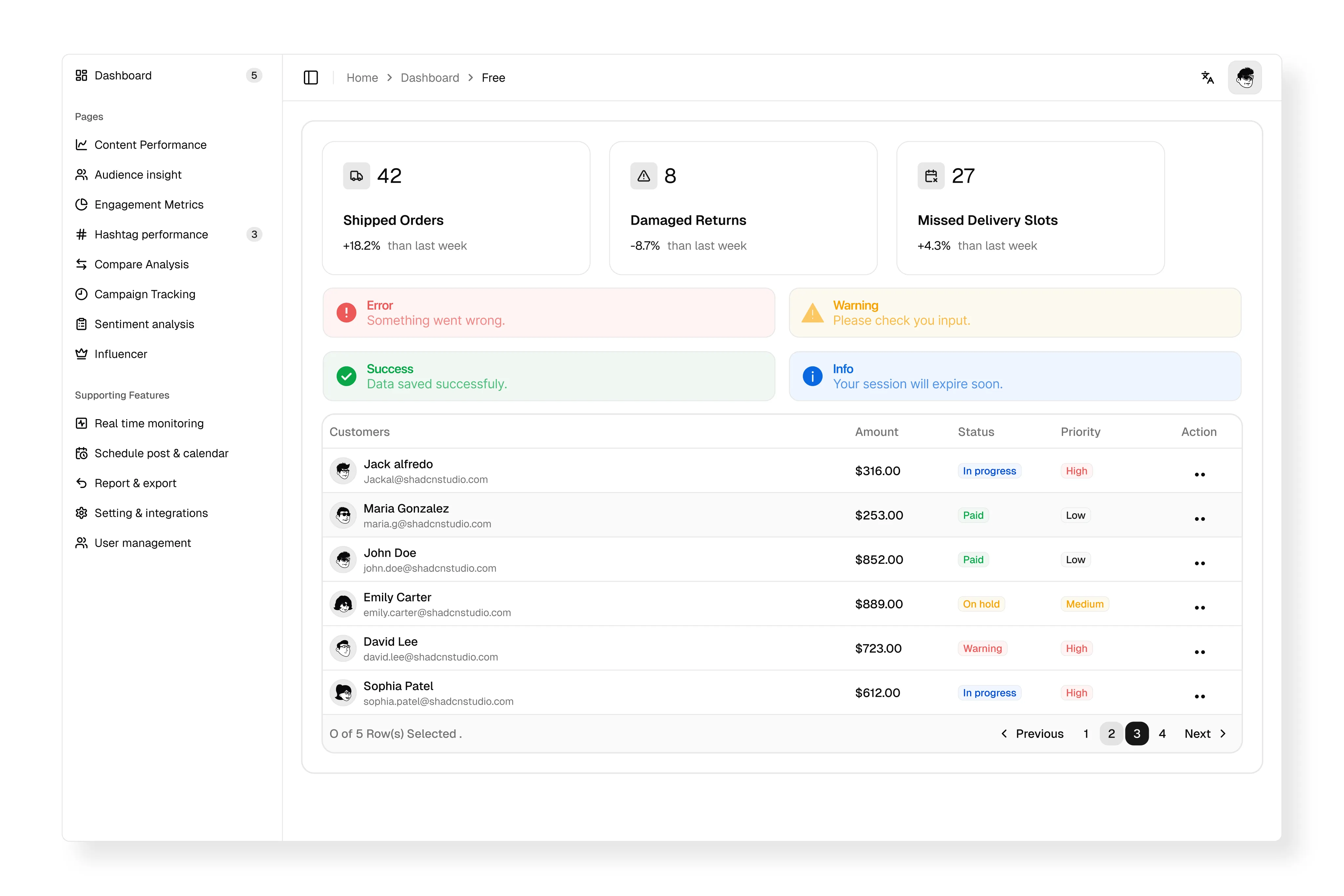
Beyond the brand palette, colours carry meaning. Blue reads as trustworthy and informational. Red signals danger or urgency. Yellow warns. Green confirms success. These semantic colours are signifiers too, and users have spent decades learning them, so use them for purpose rather than decoration. A red “delete” button is communicating. A red “save” button is lying.
6. Dark mode plays by different rules
Flipping your light mode colours and calling it done produces dark interfaces that feel harsh and flat. Dark mode needs its own decisions.
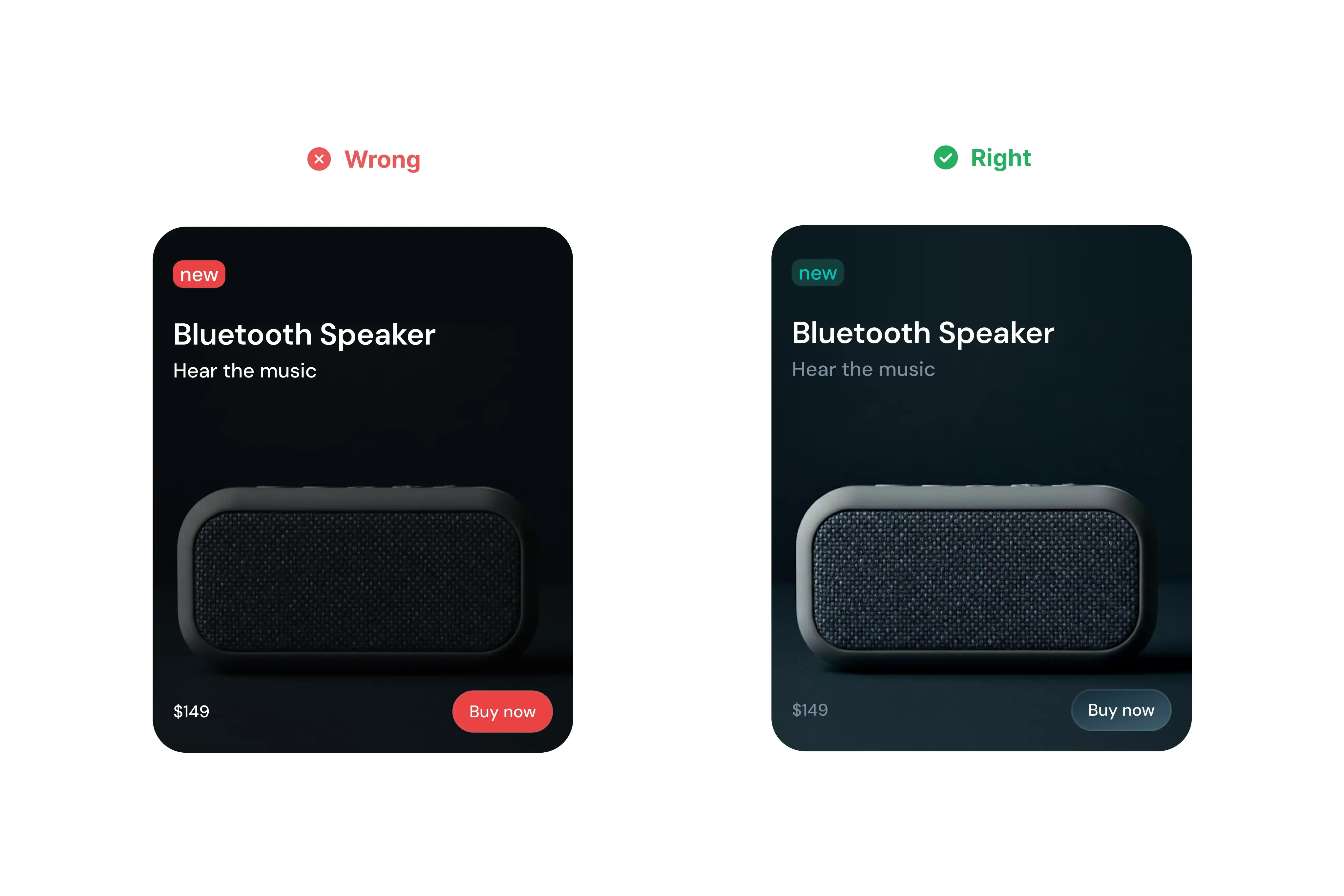
Light borders that looked subtle on white become glaring on near black, so they need to be dialled down. Shadows stop working as a depth cue, so elevation comes from surface colour instead. A card sitting above the background should be lighter than the background. Bright accent chips need their saturation and brightness pulled back, often with the colour relationship flipped so the text carries the colour instead of the fill. And dark mode does not have to mean navy or grey. Deep purples, reds, and greens all work as dark surfaces.
7. Shadows you notice are shadows done wrong
Most shadows ship far too strong. Lowering the opacity and increasing the blur almost always improves them. How much depends on what the element is doing. A card resting on the page needs very little. A popover floating above other content needs more, because the shadow is doing real work there, communicating elevation.
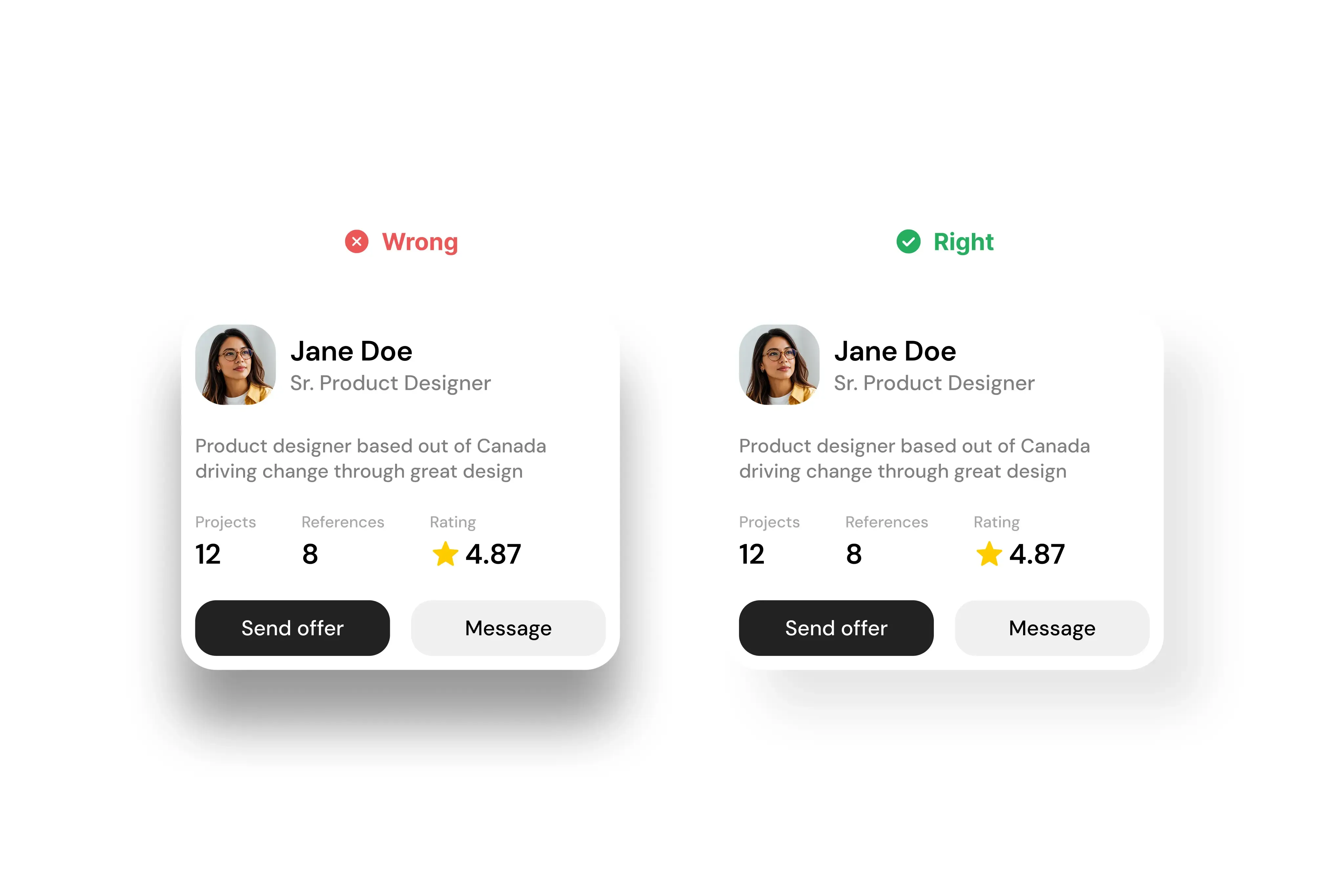
Inner and outer shadows can also combine to create raised, tactile buttons that feel physically pressable. The test for all of it is simple. If the shadow is the first thing you notice, it is too strong.
8. Icons and buttons follow the text
Icons usually ship too big. Match the icon size to the line height of the text beside it, commonly 24 pixels, tighten the gap, and icon and label start reading as a single unit instead of two stacked elements.
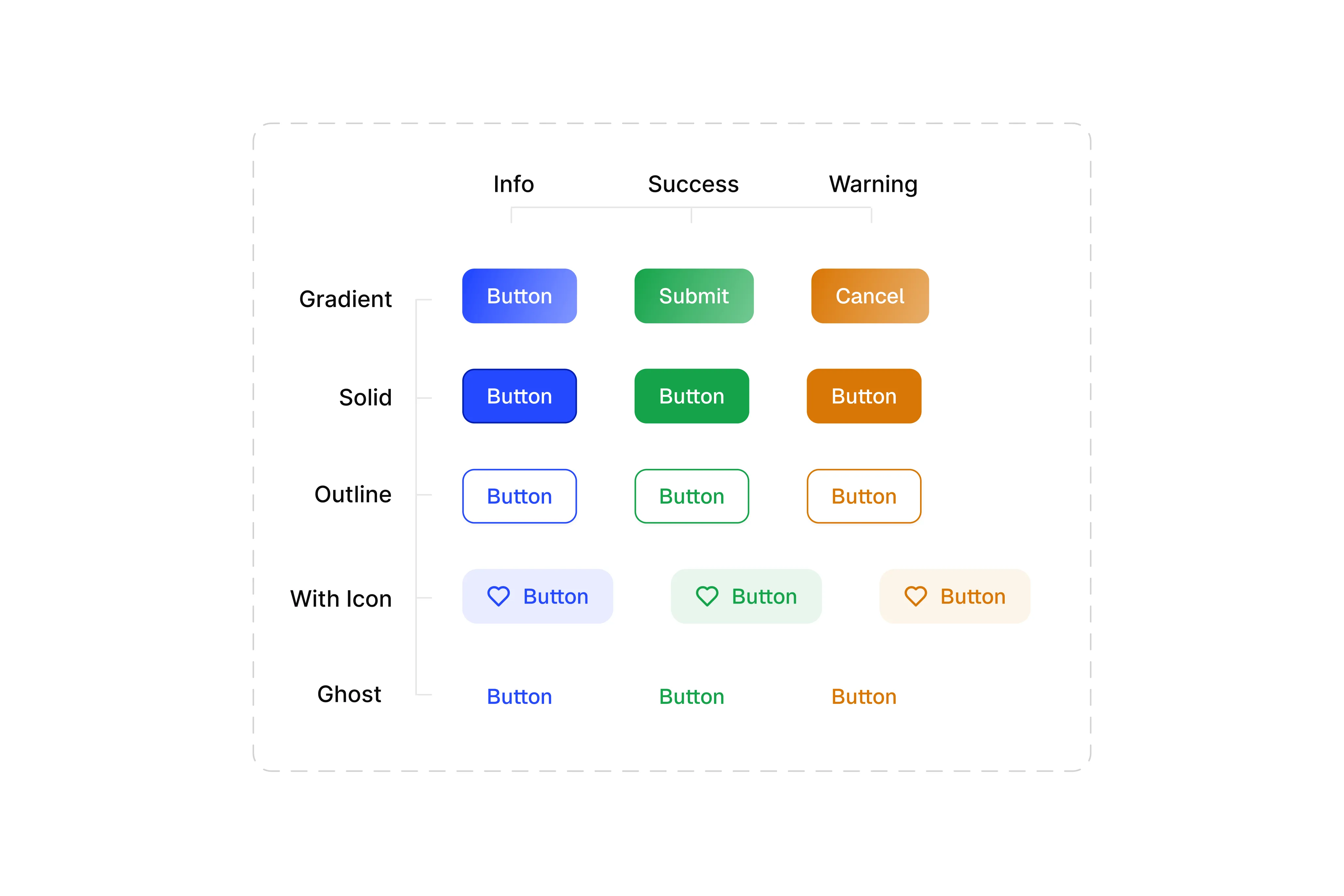
Buttons are more flexible than they first appear. A sidebar link is really just a button with no background until you hover it, often called a ghost button. Isolate one and centre it and you have a perfectly serviceable secondary button, which is why primary and ghost buttons pair so well for side by side calls to action. For padding, doubling the button’s height to get its width is a reliable starting point, with or without an icon.
9. Every action needs a response
When a user does anything, the interface should respond. Every button needs at least four states: default, hover, pressed, and disabled, plus a loading state with a spinner where an action takes time. Inputs need even more care. A focus state when the user clicks in, error states with red borders and a message explaining what went wrong, and warning states for problems that will not block submission.
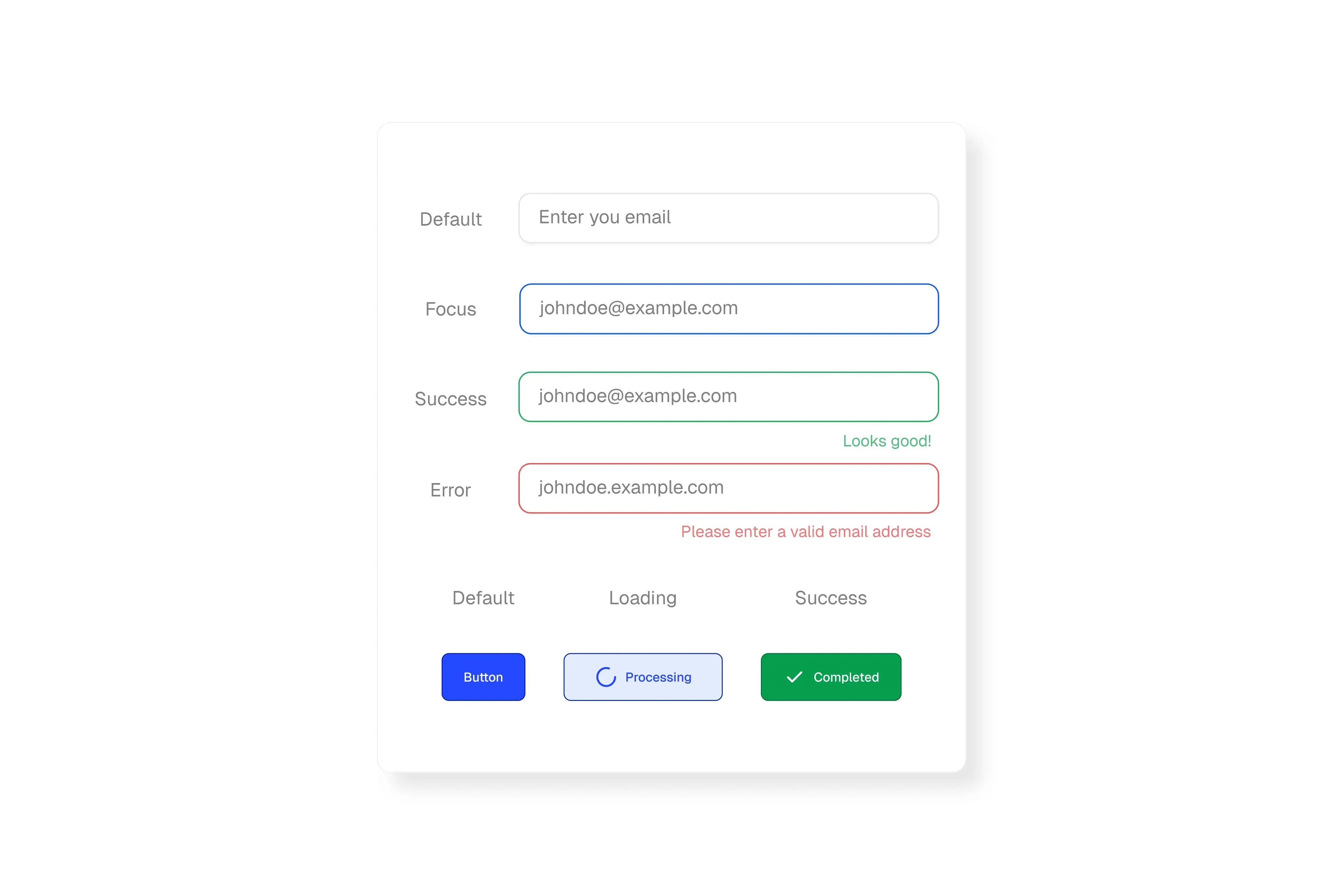
The same principle runs through the whole product. Spinners while data loads, confirmation when an action completes, motion that acknowledges a scroll or swipe.
Micro-interactions push this further. A copy button can have perfect hover and press states and still leave the user unsure whether anything was copied. A small “copied” chip that slides up for a moment closes that loop. Some micro-interactions are purely practical and some are playful, but the good ones all confirm that the user’s action did something.
This is the area we audit hardest when reviewing interfaces that were built quickly, because missing states are the difference between a design that demos well and a product that survives real users. It is a recurring theme in the conversion work behind our web design projects.
10. Overlays protect text without ruining the image
Text placed directly over a photo is a gamble. Sometimes it lands on a quiet area and reads fine, and sometimes it lands on a busy area and disappears. A full screen dark overlay solves readability but buries the image you presumably chose for a reason.
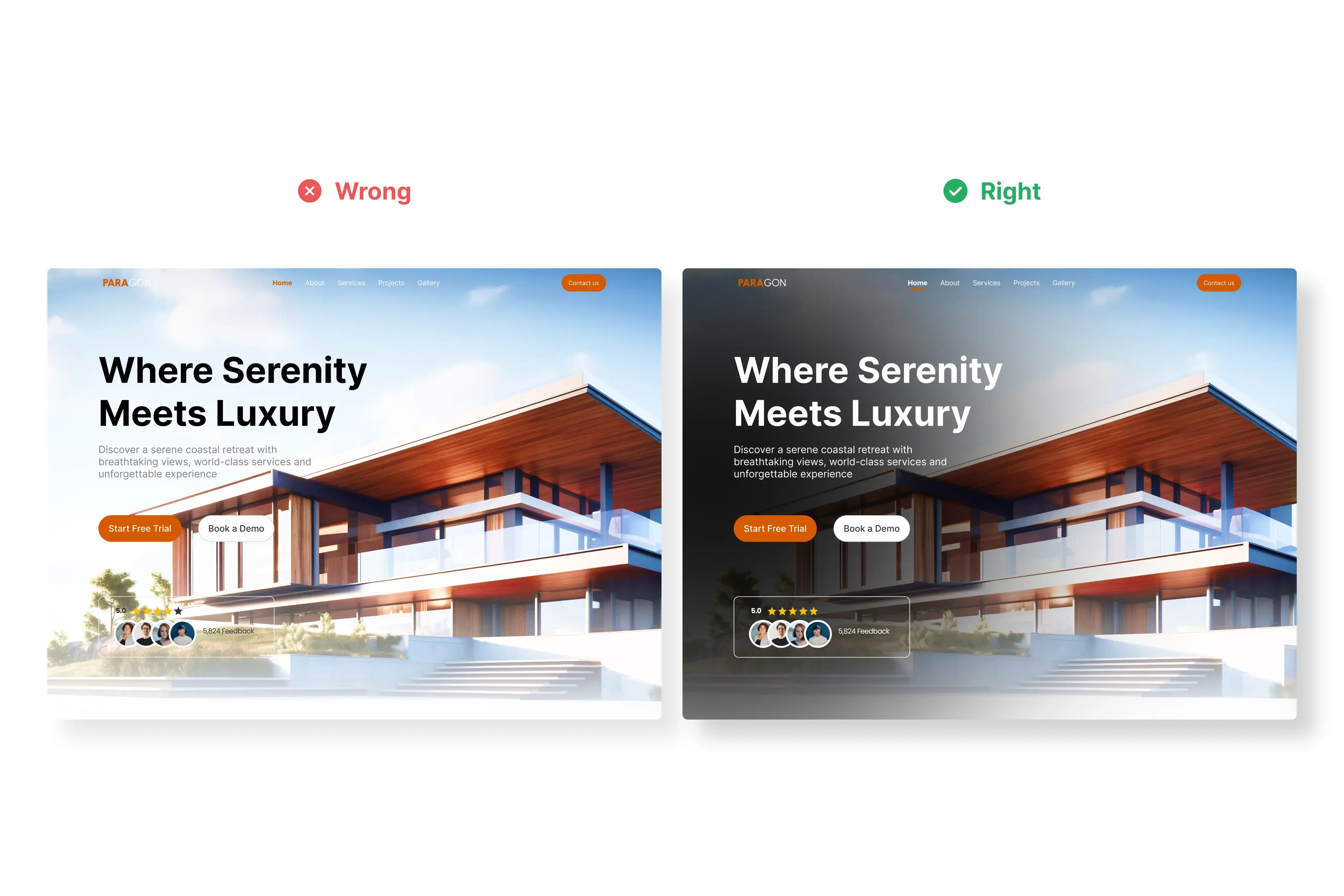
A linear gradient is the better tool. Keep the image clear at one end and fade into a text readable background at the other. For a more modern treatment, add a progressive blur underneath the gradient, so the image softens gradually as it approaches the text. The image stays visible, the text stays legible, and nobody had to compromise.
Fundamentals beat trends
None of these ten ideas is glamorous, and that is rather the point. Visual trends come and go, but signifiers, hierarchy, spacing, and feedback have stayed stable because they map to how people actually read screens.
When we design and build websites at WebArt Design, these fundamentals are the checklist running underneath every screen, and the same list applies when we prototype mobile apps in Figma before a line of code is written. If your current site or app fails more than a couple of the points above, that is usually showing up in your conversion numbers already. We are happy to take a look.


